Connecting X to PostBox
X is the one platform that asks you to bring an app of your own.

Have an assistant walk you through it
Hand this to an agent and it will walk you through the whole thing, or ask the Grok bot on X to fetch your Client ID.
Or do it yourself, in seven steps
-
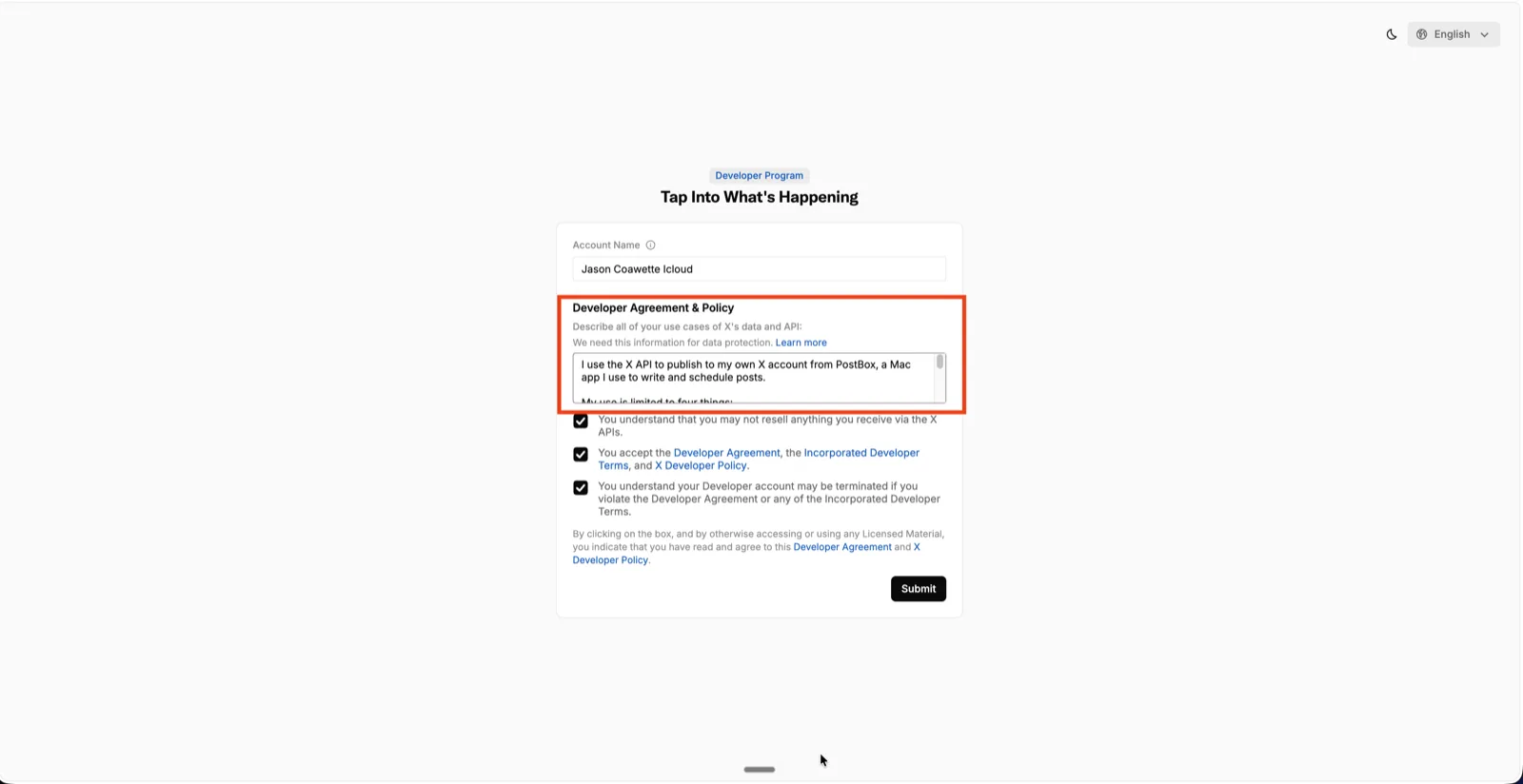
Join the X Developer Program
Sign in with the X account you want to post from, tick the three boxes, and paste the description below into the use-case box.
Read it before you paste it, because it goes on the form under your name.
-
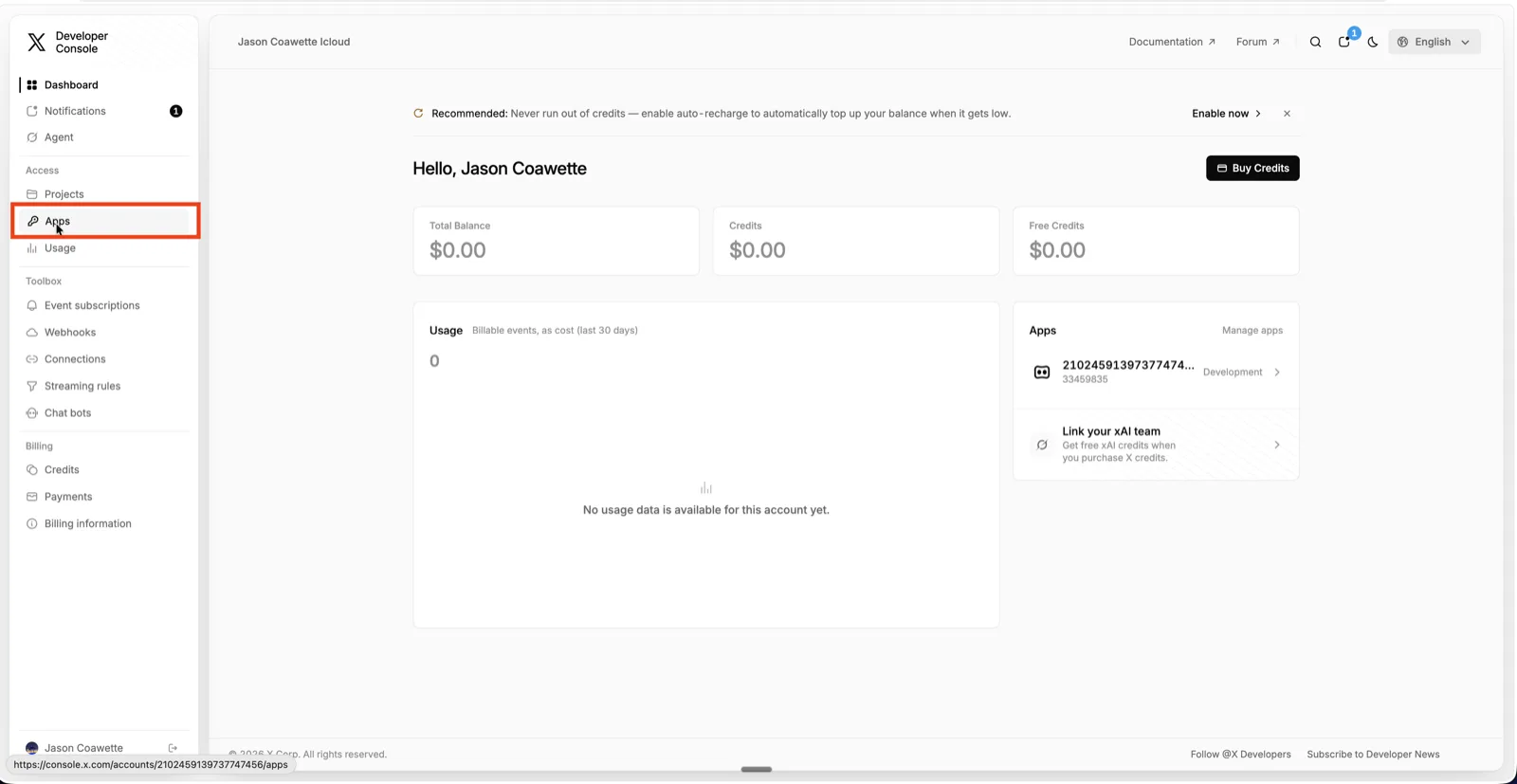
Open the X developer console
Enrolment drops you at console.x.com, so check the avatar in the corner is the account you meant.
-
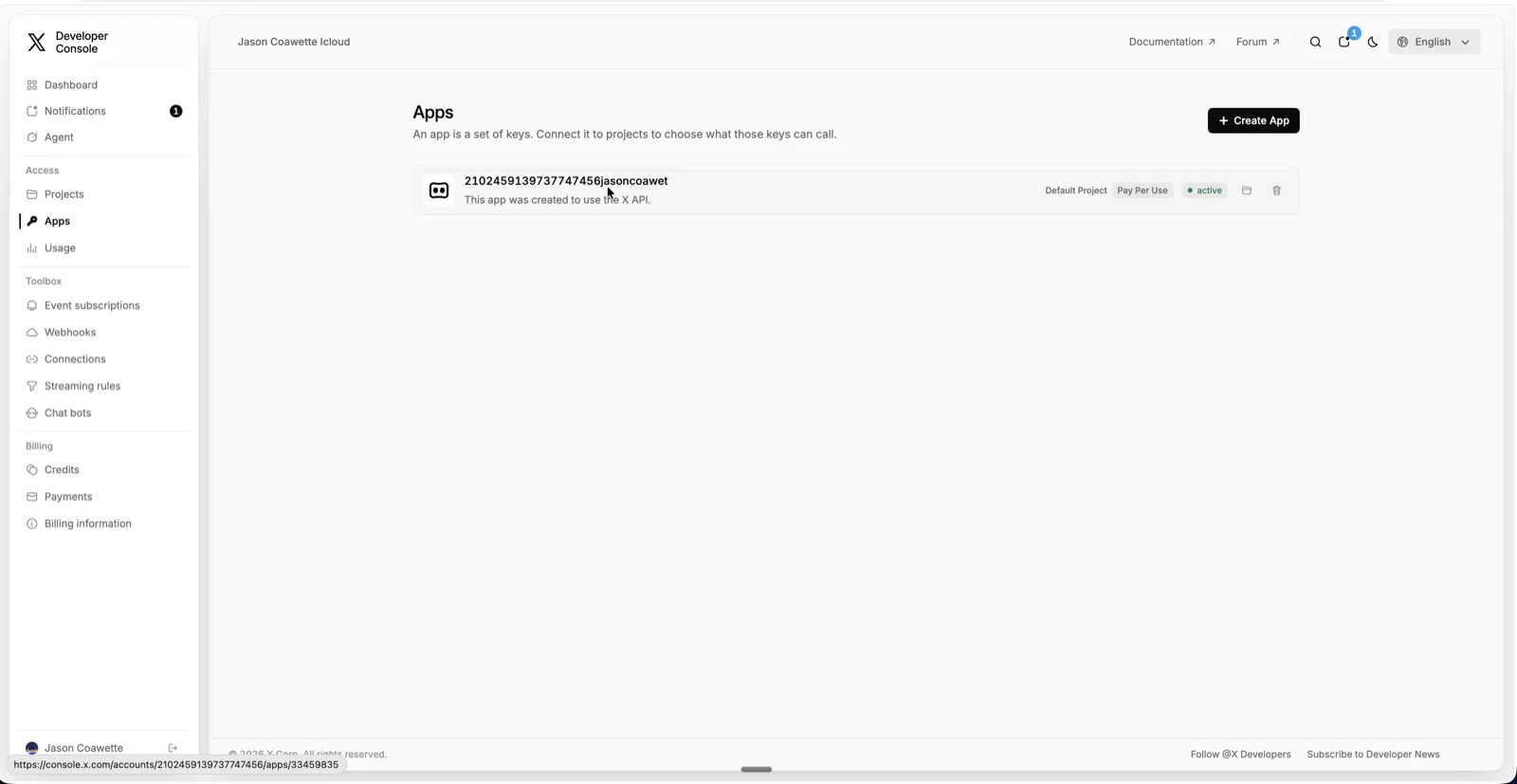
Open the app X already made you
Open Apps in the left nav and open the app already sitting there, because enrolment made one for you and its name is what X shows as the post’s source.
-
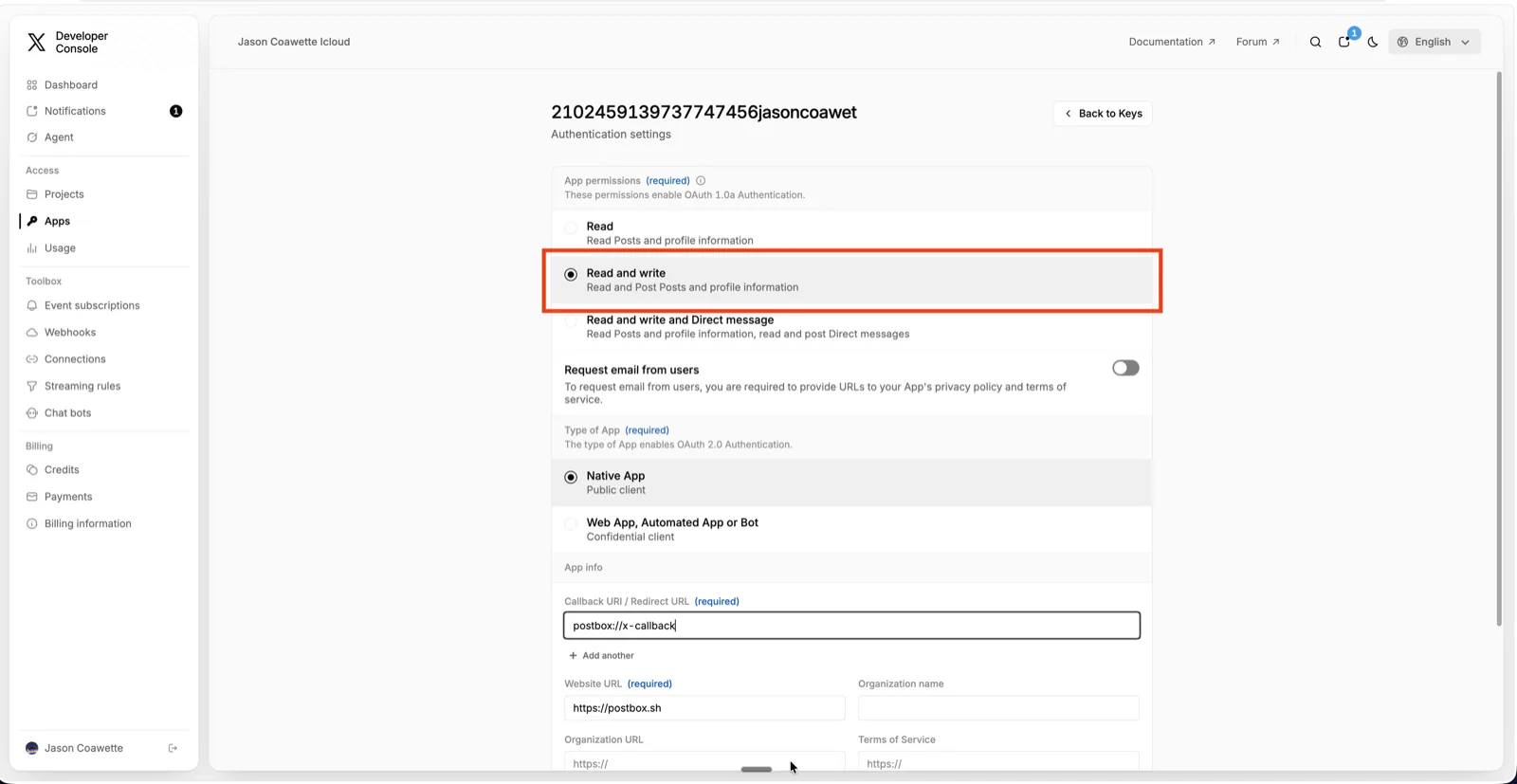
Set it up as a Native App
In the app’s Keys & Tokens tab press Set up under User authentication settings, then choose Read and write, pick Native App, and paste postbox://x-callback as the Callback URI exactly as written.
-
Copy the Client ID
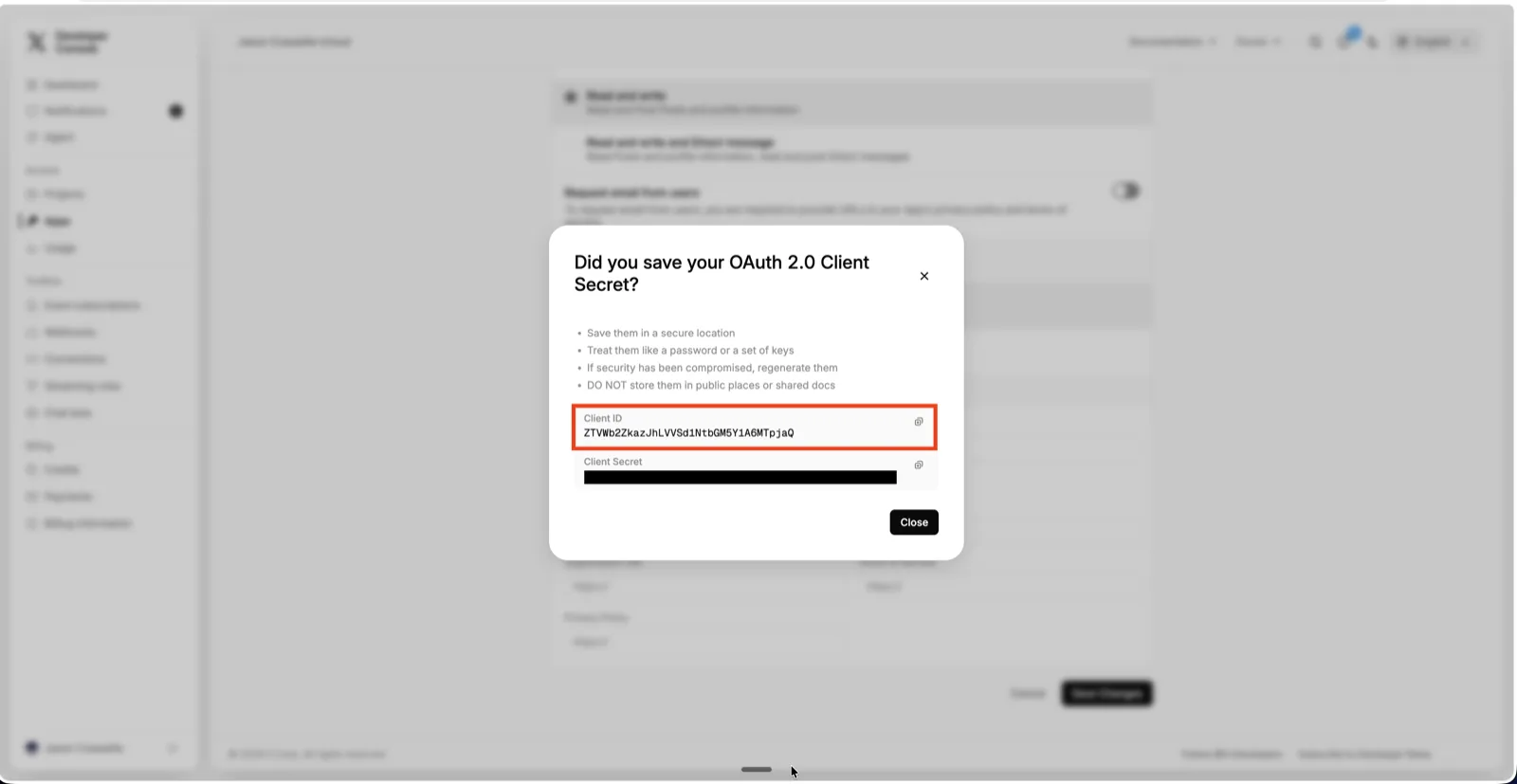
Saving pops a dialog with two values in it — copy the Client ID, never the Client Secret underneath.
-
Paste it into PostBox and sign in
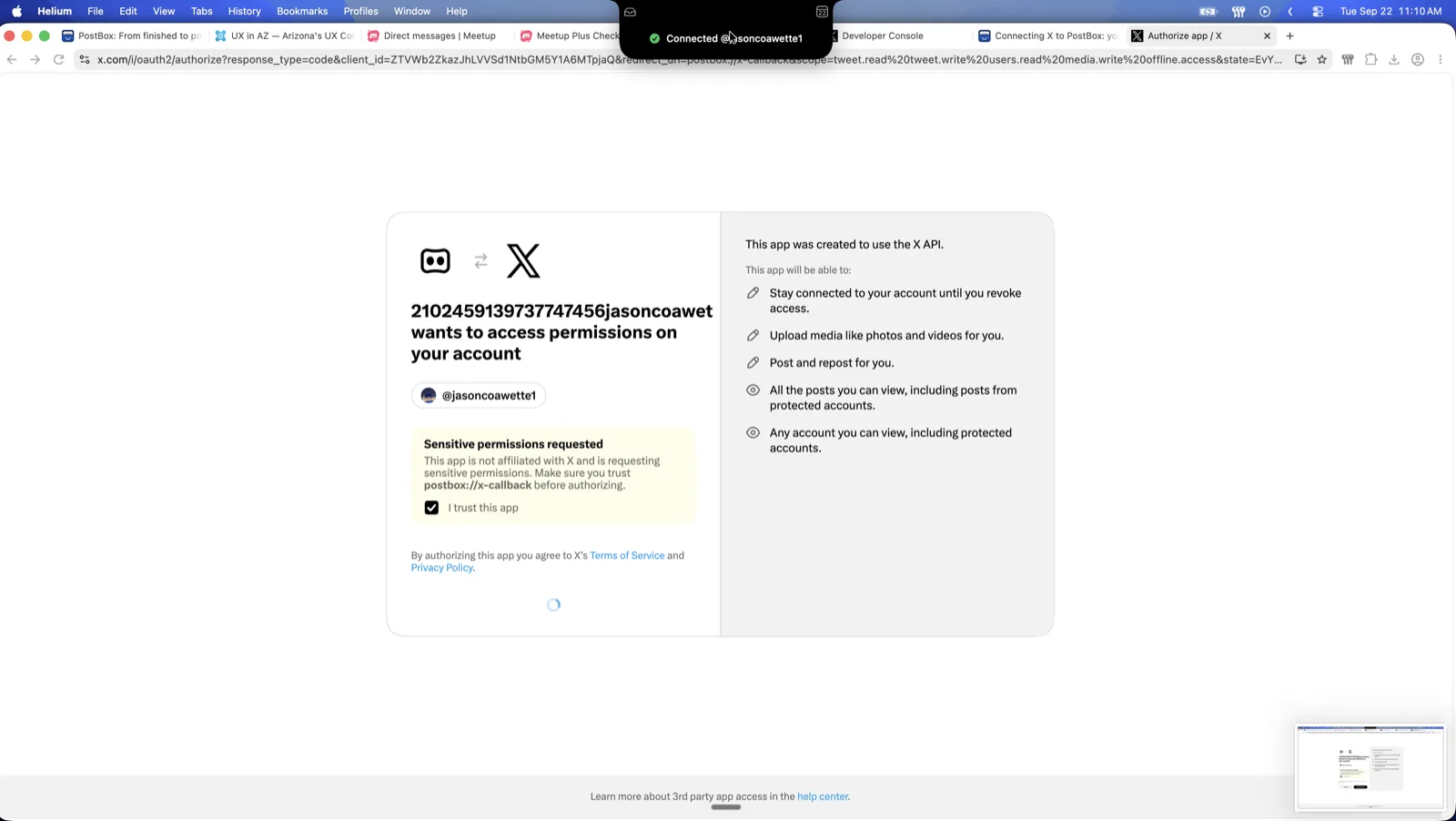
Paste it into the notch and press Connect X, then tick “I trust this app” on X’s page, which is X describing the app you just made back to you.
-
Buy credits before your first post
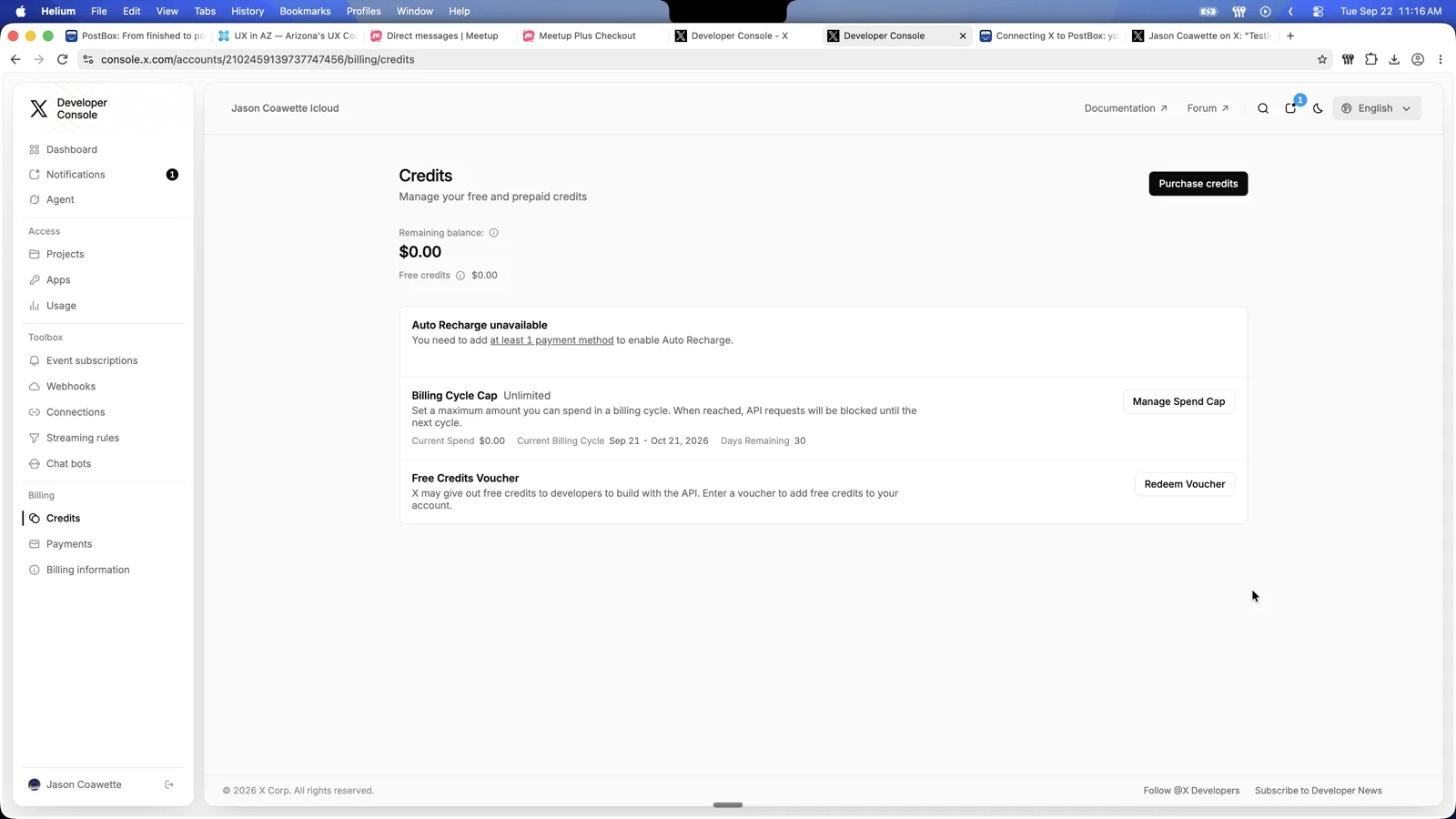
Open Billing → Credits, add a payment method, buy credits and turn on Auto Recharge, because a connection with an empty balance looks exactly like a working one until the first post fails.
If the sign-in does not finish
- X says something went wrong before you can approve
- Check you copied the Client ID and not the App ID — the short all-digits number beside it —
and that the Callback URI reads
postbox://x-callbackexactly, with no trailing slash, because X matches it character for character. - You approved on X, and PostBox never noticed
- If you keep more than one copy of PostBox, macOS can hand the finished sign-in to the wrong one, so trash the spare and sign in again.
- “That sign-in expired” or “Use the newer tab”
- Only the most recent sign-in counts, so press Connect X again and finish that tab.
- You have two X accounts and only one gets the post
- Open Settings → Connections and read the two X rows: different handles means the quiet account has run out of credits, and the same handle twice means that sign-in reused your browser's session, so disconnect it, switch accounts on x.com and connect it again.
- It connected, then a post failed
- Check your credit balance, and if a picture failed where text alone would have worked, the app is set to Read only — set it to Read and write and sign in again.
Posting to more than one X account
PostBox is not limited to one X account, but a second one is a second everything on X's side — its own enrolment, its own app, its own Client ID, and its own credits.
That last one is what catches people, because an account you connected but never bought credits for shows as Connected and silently posts nothing.
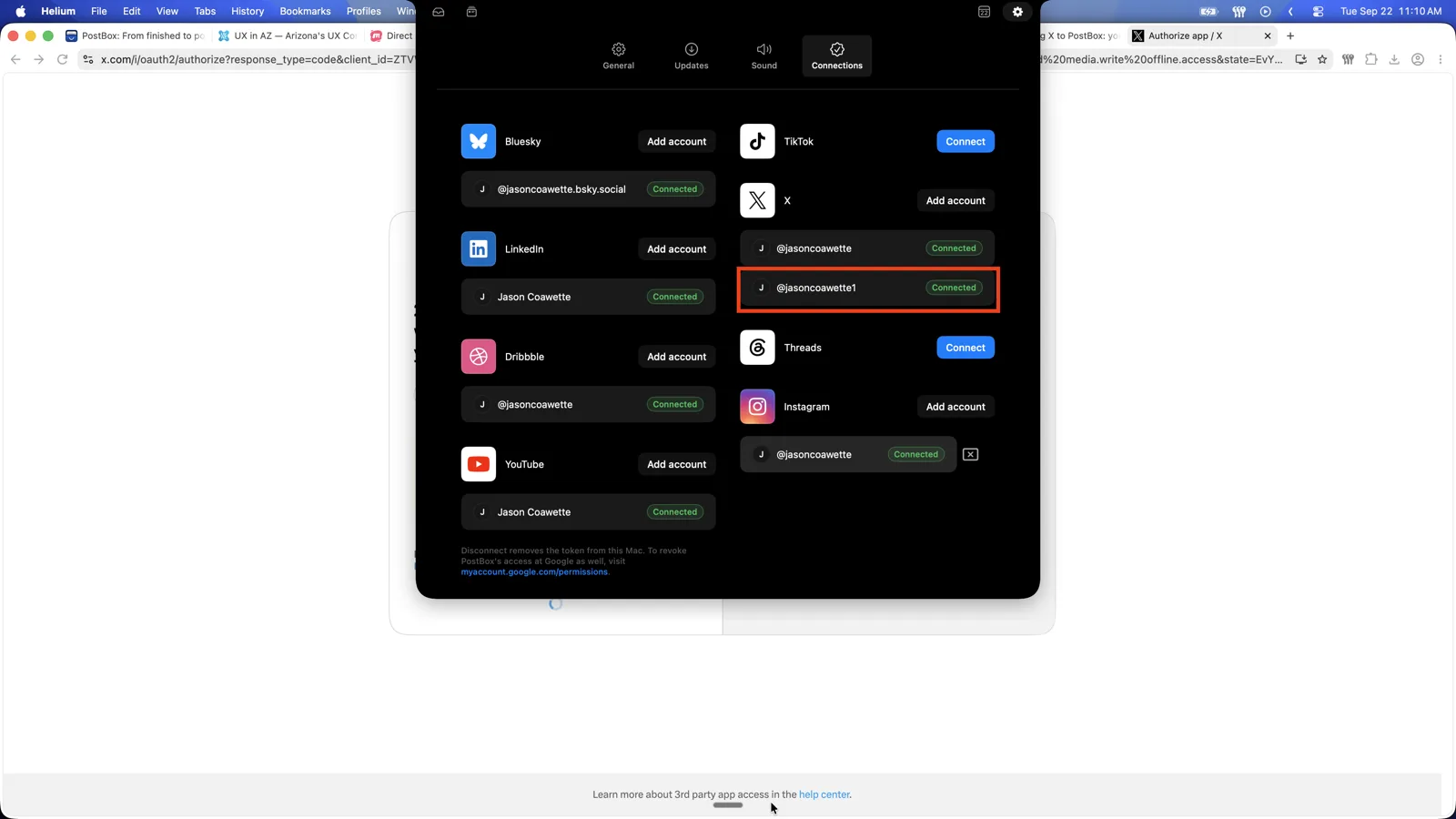
Switch accounts on x.com before you press Connect X the second time, because X's approval page has no account picker and will quietly grant for whoever your browser is already signed in as.
Why your own app, and what PostBox keeps
Your own app spends your own credits, so nothing anyone else does can take your posting away. It is also why X costs you nothing in PostBox: there is no allowance to meter and no plan to sell you. Every other platform still connects with one press.
The Client ID is not a secret — it travels in the address bar when you sign in, and it only names your app. PostBox never asks for your Client Secret and never sends one. What can actually post is created by the sign-in, never typed, and kept in your Mac's Keychain. PostBox has no account and no database, so there is no copy of it on a server of ours to lose. Revoke it any time from your X account's connected apps, or disconnect X in PostBox.
Stuck on something this page does not answer, write to [email protected]. Also here: Privacy Policy.